PageRip 2.0 · Free Chrome extension

From page element
to HTML and CSS.

Pick a piece of a web page. Get its HTML and CSS, see what couldn’t be captured, and take it into your next build.

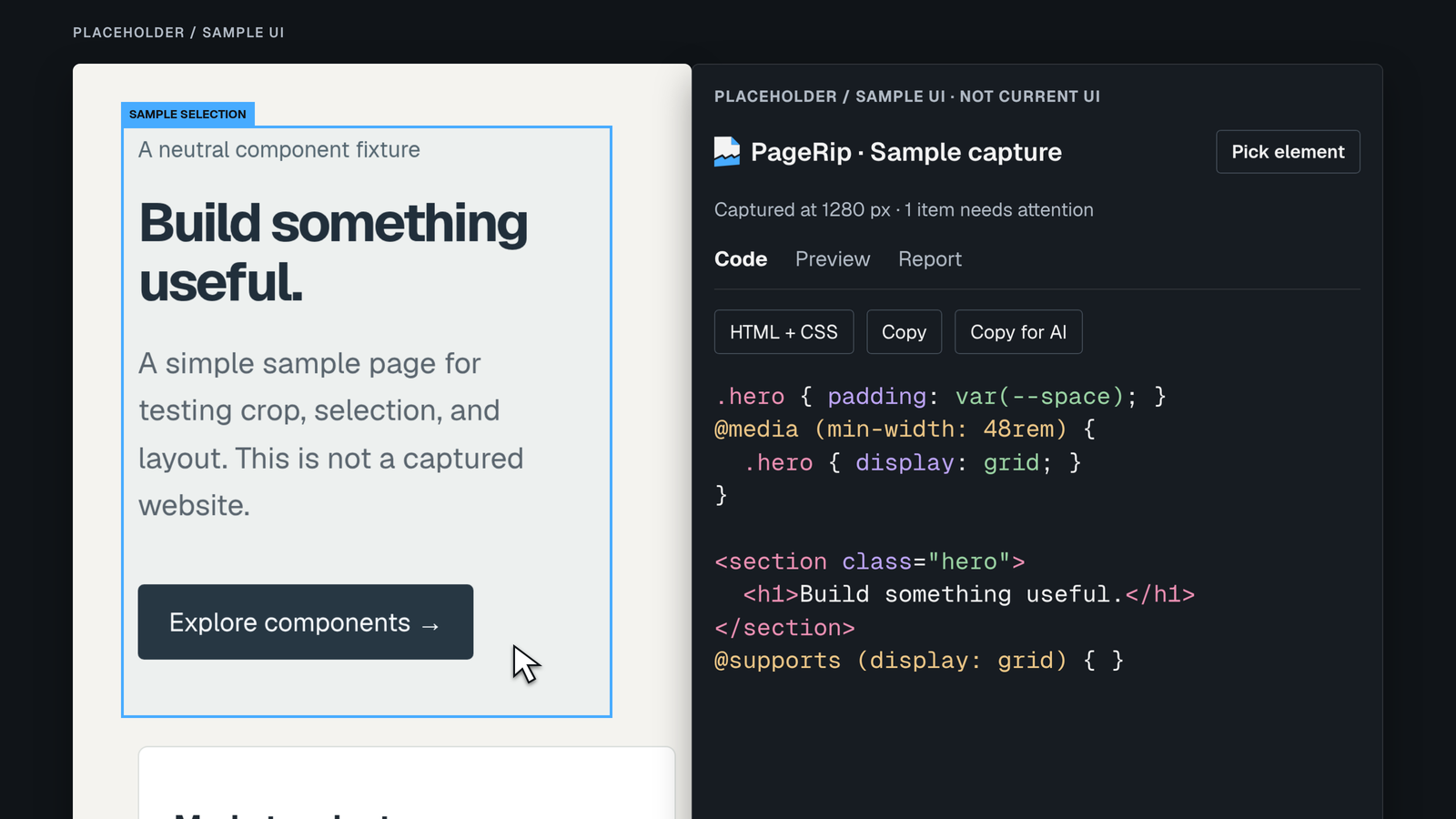
Placeholder sample: a selected page element beside the PageRip code panel.
Placeholder / sample UI. Real captures will replace these visuals.

How it works

Capture first. Then take a closer look.

The picker starts on the page. The side panel opens when you’re ready to review.

  1. Pick an element

    Use the toolbar button or your assigned shortcut to start picking. Capture before opening the panel, so the page keeps its current width.

  2. Review the capture

    Select Captured · Review to open the side panel. Look through Code, Preview, and the Report of what needs attention.

  3. Copy or save

    Choose an output and copy the code. Use Copy for AI or Save for agent to carry the capture notes along with it.

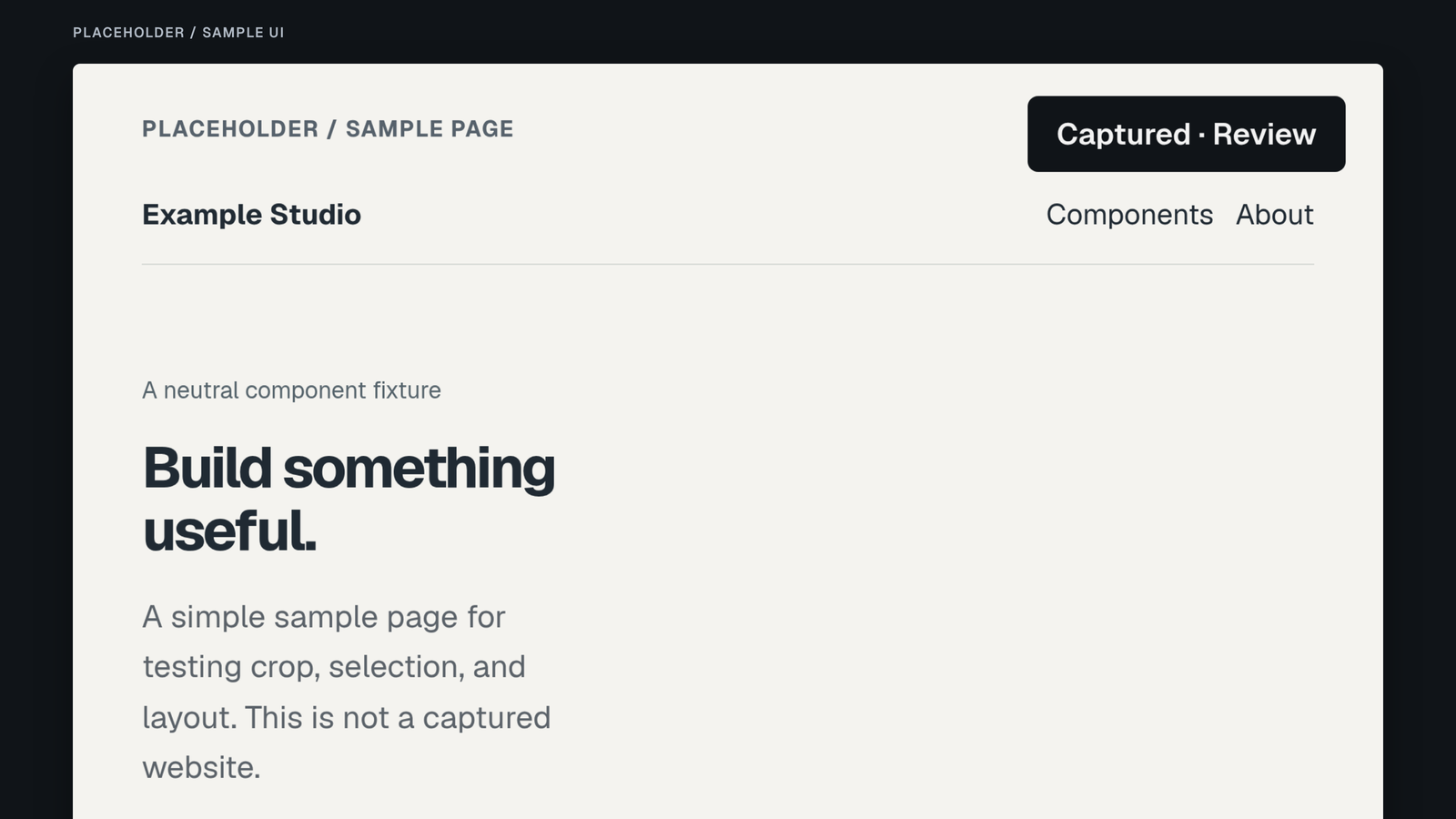
Placeholder sample: the Captured · Review control on the page before opening the side panel.
Placeholder / sample UI · The review control appears after capture, before the panel opens.

Inside the capture

Useful code, with the context to use it.

01 / Code

The CSS rules, or the state on screen.

Authored CSS keeps readable rules, original units, variables, and responsive styles. A current-state snapshot uses resolved values for what’s visible now.

Export HTML + CSS or JSX + CSS with either kind. Inline snapshot always uses the current state. JSX converts syntax; it doesn’t recover React behavior.
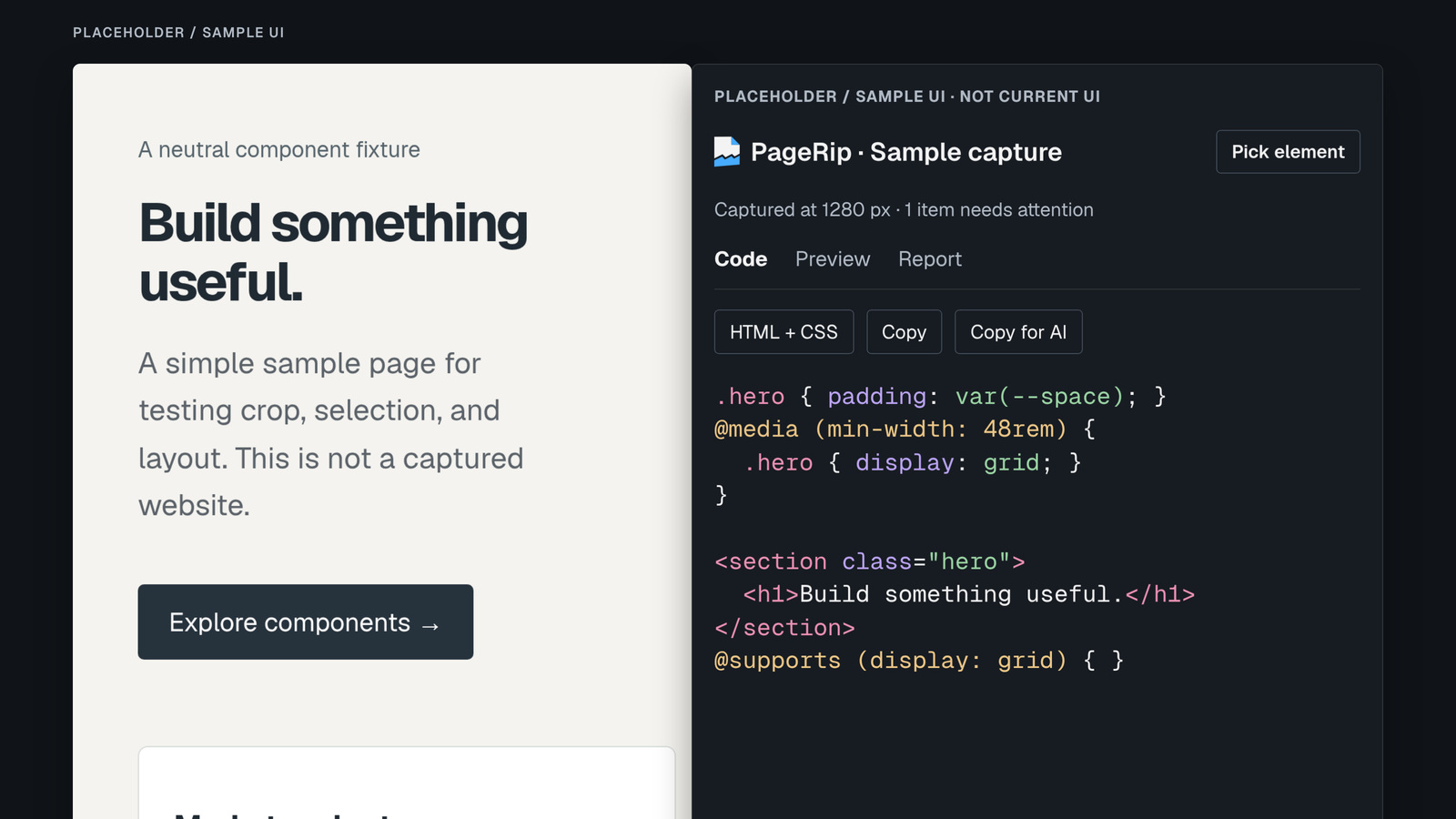
Placeholder sample: HTML and authored CSS with a variable and media query in the code panel.
Placeholder / sample UI · Authored CSS in the code view.

02 / Report

Know what needs attention.

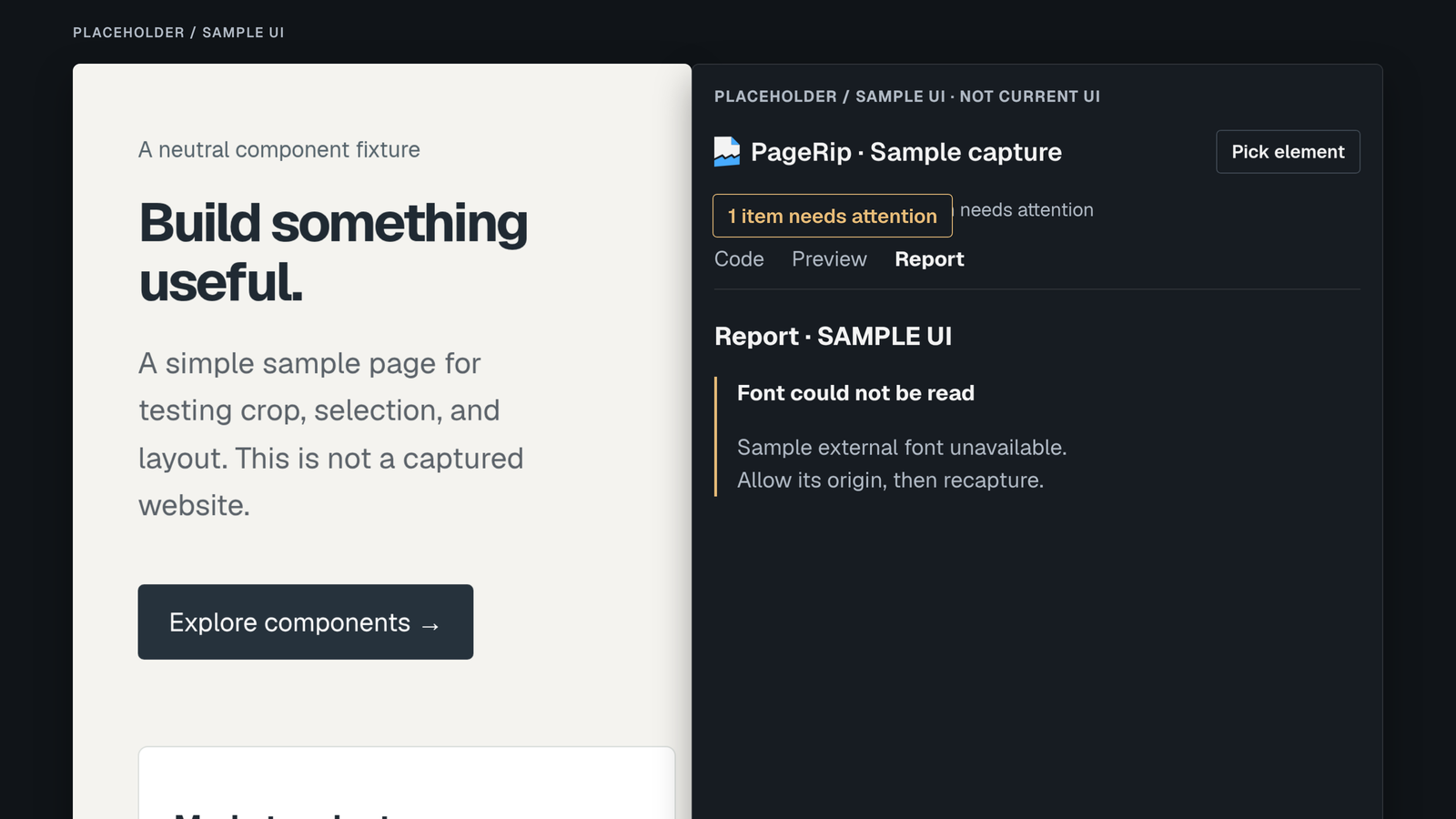
A blocked font, an unreadable stylesheet, a skipped frame: the Report lists what couldn’t be captured, what it may affect, and what to try next.

Allow an origin and recapture, or keep the partial result with its gaps in view.

Placeholder sample: the Report view explains a font that was not captured and a next step.
Placeholder / sample UI · A gap, its consequence, and a next step.

03 / Preview

Try another width. Know what it means.

Preview the output at breakpoints found in the capture. Other widths are labelled simulated: they show how the exported code responds, not a new observation of the original page.

The preview doesn’t run the page’s scripts.

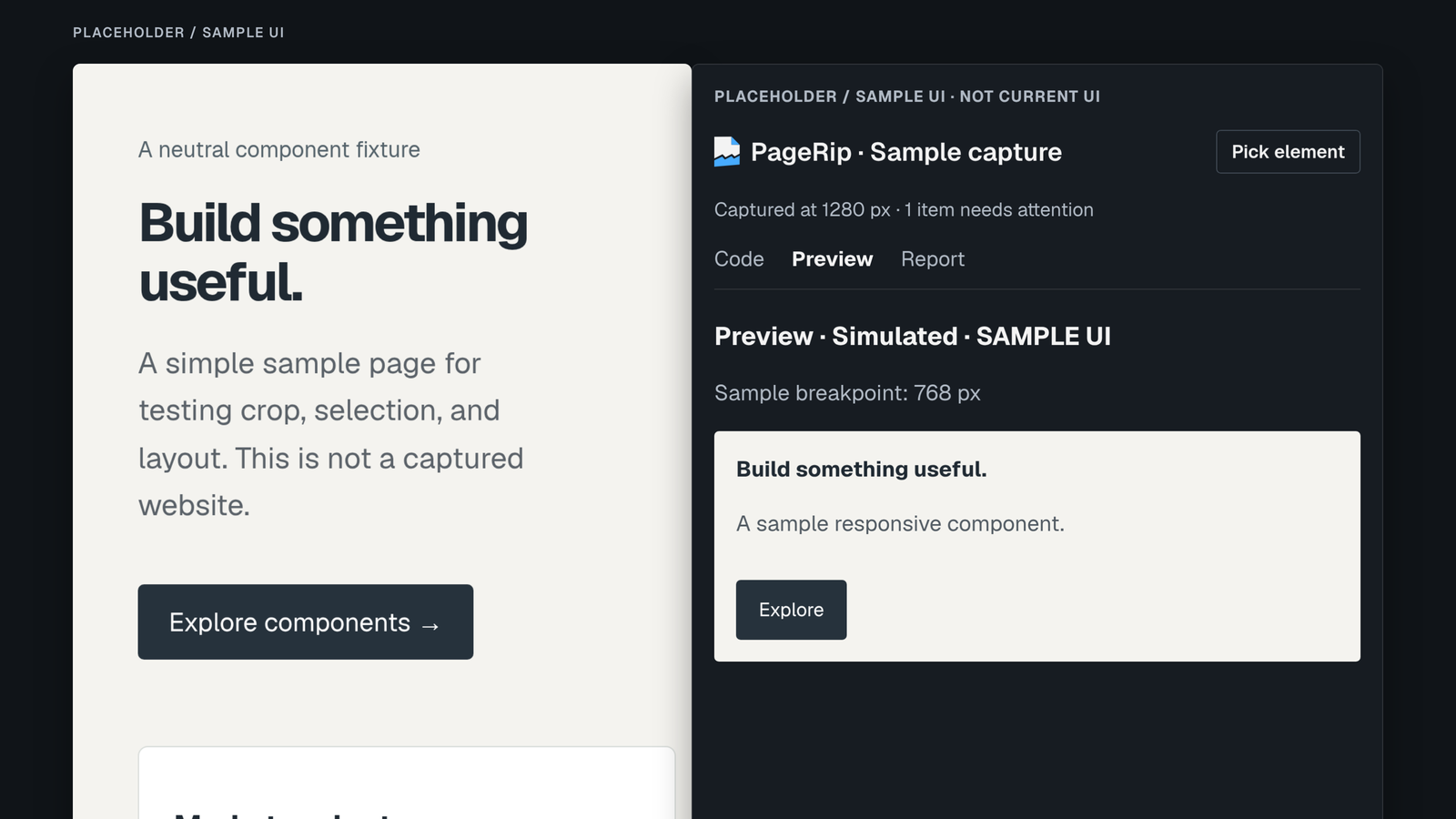
Placeholder sample: a simulated preview at another width, labelled as simulated.
Placeholder / sample UI · A simulated breakpoint preview.

04 / Handoff

Give your agent the code and the unknowns.

Copy for AI includes HTML, CSS, the source, capture width, and gaps in one Markdown block. Save for agent writes it to a place you choose, with a download fallback.

Add an optional line of intent. It stays separate from the captured page facts.

05 / Local

Your captures stay in your browser.

PageRip keeps your last five captures locally. It doesn’t upload captured page content or URLs to a PageRip server.

When you share an export with an agent or anyone else, you send the content you choose to share.

A few details

Before you capture.

Is PageRip free?

Yes. PageRip 2.0’s capture, code outputs, preview, Report, Copy for AI, and Save for agent are free.

What can’t it capture?

A capture is a starting point for a rebuild. It doesn’t recover application logic or React behavior. Unreadable stylesheets, blocked assets, skipped frames, and states that weren’t captured are listed in the Report. A preview at another width is simulated. Full-page captures are best effort and show a size warning.

Does my page content leave the browser?

Captures are stored locally in your browser. PageRip doesn’t upload them. Copying or saving creates an export you control. If you paste it into an AI service or send it to someone else, that shares the content you selected. This website’s hosting and analytics are separate from extension captures.

Start with a piece of the page.

Pick it. Review it. Bring the code into your build.

Add to Chrome